This page refers to the fields available on the Credentials tab of the Secured Signing section of the Cost Centres.
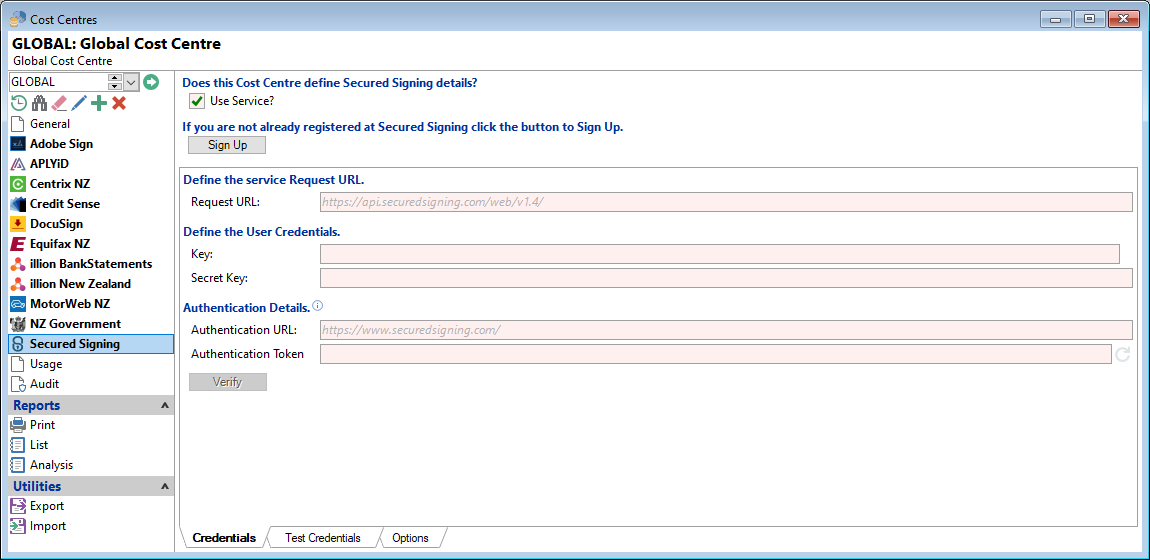
Use Service?
Tick to indicate that the Cost Centre defines the Service information.
Please go to the Hierarchy page for more information about where and how Cost Centres are connected to Branches and Entities.
If you are not already registered at Secured Signing click the button to Sign Up
Click on the Sign Up button, to register with Secured Signing.
Define the service Request URL
This is the request URL that enquiries are sent to. There is no need to define this, unless you have been specifically told to do so by Secured Signing.
You can right click and select the "Paste Hint" to paste in the URL details. However, if the URL details are changed (by Secured Signing), you will need to manually update the URL as finPOWER Connect will not update it automatically.
Define the User Credentials
Key and Secret Key will be provided upon registering with Secured Signing.
Enter these details in the appropriate field.
Authentication URL
This is the request URL that the Authentication is sent to. There is no need to define this, unless you have been specifically told to do so by Secured Signing.
You can right click and select the "Paste Hint" to paste in the URL details. However, if the URL details are changed (by Secured Signing), you will need to manually update the URL as finPOWER Connect will not update it automatically.
Authentication Token
Click on the Refresh  icon; this will take you to the Secured Signing site where you will need to login and confirm your credentials. Once this has been done the Token will be automatically entered.
This button will only be available once Credentials have been entered and you are out of Edit Mode.
Verify
Click the  button to check connection and ensure account details have been entered correctly. This button will only be available once Credentials have been entered and you are out of Edit Mode.
Please also view Help pages for the Test Credentials and Options tabs at the bottom of the screen.
- The Test Credentials tab, allows you to enter Test credentials where there is a Test Environment Available.
- The Options page, allows you to set Options and Defaults for the Individual, Company and Commercial Credit Enquiries.